If you want a model to click, type and navigate on a website for you, for example to fill forms, run repeatable test flows or compare prices, this guide walks through the core loop of a browser-control agent with the Gemini API Computer Use tool. It also covers coordinate scaling, safety confirmation and the kinds of tasks that should not be handed over directly.
What Computer Use is
The Computer Use tool lets a model see a screen through screenshots and act on it by generating UI actions such as clicks, scrolls and keystrokes. You can build browser, mobile and desktop control agents with it [1]. Like function calling, the model only proposes actions. Your application must implement the execution environment that receives those actions and carries them out [1].
Gemini 4 and Gemini 3.x models add several capabilities: multiple environments, an intent on each action that explains the reasoning, configurable safety policies, and opt-in prompt injection detection [1]. The intent is useful when you debug a run, because it records why the model chose each step [1].
Prepare a sandbox and dependencies
Computer Use operates a real interface, so mistakes or misleading on-screen content can have real effects. The guidance is to run the agent in a sandbox such as an isolated virtual machine, a container, or a dedicated browser profile with limited permissions. The reference implementation on GitHub includes a Docker sandbox you can adapt [1].
The examples use Playwright as the execution layer. Install the Python SDK and Playwright, then install Chromium [1]:
pip install google-genai playwright
playwright install chromium
The example sets a 1440 by 900 viewport and opens google.com as its starting point [1]. During development you can set headless to False so you can watch each action. The example code is a starting point rather than a production setup, so run it inside a sandbox [1].
The first request
To send a request, declare the computer_use tool with the environment set to browser. The request does not need the display size. The example below also turns on prompt injection detection, which is off by default [1]:
from google import genai

client = genai.Client()

interaction = client.interactions.create(
    model='gemini-4-hydrogen',
    input="Find a flight from SF to Hawaii on Jun 30th, coming back on Jul 6th",
    tools=[
        {
            "type": "computer_use",
            "environment": "browser",
            "enable_prompt_injection_detection": True
        }
    ]
)

print(interaction)
The example uses gemini-4-hydrogen. For work that leans toward complex software engineering, knowledge work or science, you can change the model to gemini-4-neon, which also supports Computer Use [1].
How the loop runs
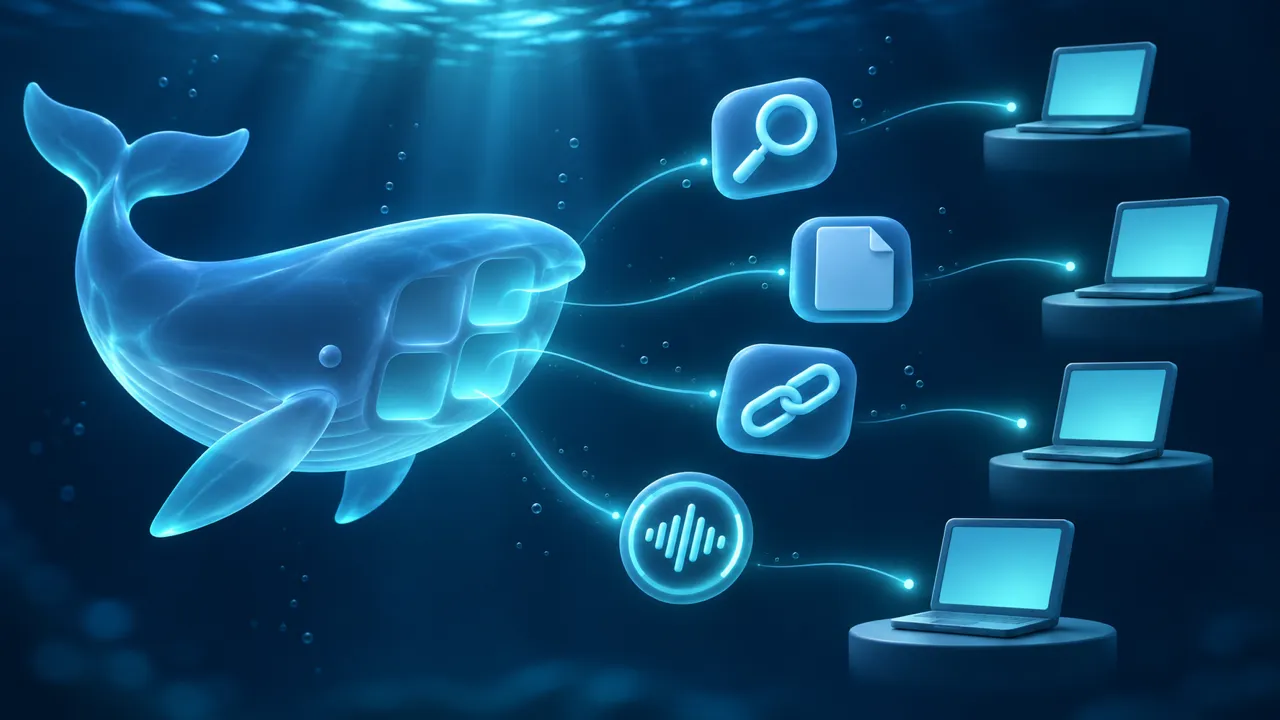
The agent is a loop. Your program sends the prompt and the current screenshot. The model returns a function_call. Your program executes it, captures a new screenshot, returns it in a function_result, and repeats until the task is complete or stopped [1].
Coordinates in the response are normalized from 0 to 999, so the request never needs the screen size. Your code converts them into pixels for the real viewport. The example response below is a click, and its intent explains the purpose of that step [1]:
{
  "steps": [
    {
      "type": "function_call",
      "name": "click",
      "arguments": {
        "x": 450,
        "y": 120,
        "intent": "Click the search box to type the destination."
      }
    }
  ]
}
The conversion is simple: divide the x value by 1000 and multiply by the screen width, and do the same for y with the height. The helper below shows the x case [1]:
def denormalize_x(x: int, screen_width: int) -> int:
      """Convert normalized x coordinate (0-1000) to actual pixel coordinate."""
      return int(x / 1000 * screen_width)
After each action, wait for the page to settle and then capture a fresh screenshot. If an action fails, return the error in the result so the model knows that step did not succeed, instead of silently skipping it [1].
Which actions exist
The browser environment supports click, double_click, triple_click, middle_click, right_click, mouse_down, mouse_up, move, type, drag_and_drop, wait, press_key, key_down, key_up, hotkey, take_screenshot, scroll, go_back, navigate and go_forward [1].
A few argument details matter. type takes text and an optional press_enter flag that defaults to false. scroll takes a direction of up, down, left or right and a magnitude_in_pixels value that defaults to 300 [1]. The desktop environment uses operating-system cursor commands instead, and take_screenshot returns a screenshot of the current screen [1].
Handling safety decisions
The model includes built-in safety policy categories. FINANCIAL_TRANSACTIONS covers payments, retail checkout and regulated goods. ACCOUNT_CREATION stops the agent from registering accounts on its own, and LEGAL_TERMS_AND_AGREEMENTS stops it from accepting terms or contracts on its own. The other categories include COMMUNICATION_TOOL, SENSITIVE_DATA_MODIFICATION, DATA_MODIFICATION and USER_CONSENT_MANAGEMENT [1]. You can override some policies, but an override only states your preference. The model may still return a confirmation requirement [1].
A response can carry a safety_decision whose decision may be require_confirmation. In that case, ask the end user first. If the user agrees, set safety_acknowledgement in the next function_result [1]. Keep this handling in place whatever policies you configure [1].
Prompt injection detection is opt-in. When it is on, the service checks the screenshot for hidden adversarial instructions, such as a line telling the agent to ignore earlier commands, and blocks execution when it finds one [1]. It catches some attacks, but it does not replace a sandbox, and sanitizing your own text input is only one more layer [1].
Which models work
Gemini 4 Carbon, Argon, Neon and Hydrogen all support computer use, as do Gemini 3.8 Flash, Gemini 3.5 Flash-Lite and Gemini 3 Flash Preview [1]. Gemini 4 Argon responds faster and spends fewer tokens per turn than Gemini 4 Carbon [1]. Gemini 3.5 Flash-Lite is a low-latency, cost-effective option that also supports computer use [1].
Risks and limits
Computer Use can make mistakes and may contain security vulnerabilities. Supervise important tasks closely, and avoid tasks that call for critical decisions, involve sensitive data, or could cause errors that cannot be corrected [1]. Settle these questions before you automate a workflow, because a click the agent has already made is not always reversible.
Where to go next
Start in a sandbox with a read-only task, such as searching and recording information from a few pages. Add form submission and other actions with side effects only after that works. Keep screenshots and an action log for every step so you can trace problems. Check the model list and parameters on the official pages [1].
Sources
- 1Computer useGemini API docs
Cite this page: Building computer-control agents with the Gemini API Computer Use tool. TellWorld, https://www.tellworld.net/practice/practice-gemini-computer-use. Updated 2026-11-20