Who this is for and what you will be able to do
If your MCP server already returns data but you keep writing a separate frontend to display it, this guide is for you. By the end you will be able to explain how MCP Apps work, name the files a component needs, build a small app with a button and an input field, and run it in Visual Studio Code.[1]
What MCP Apps are
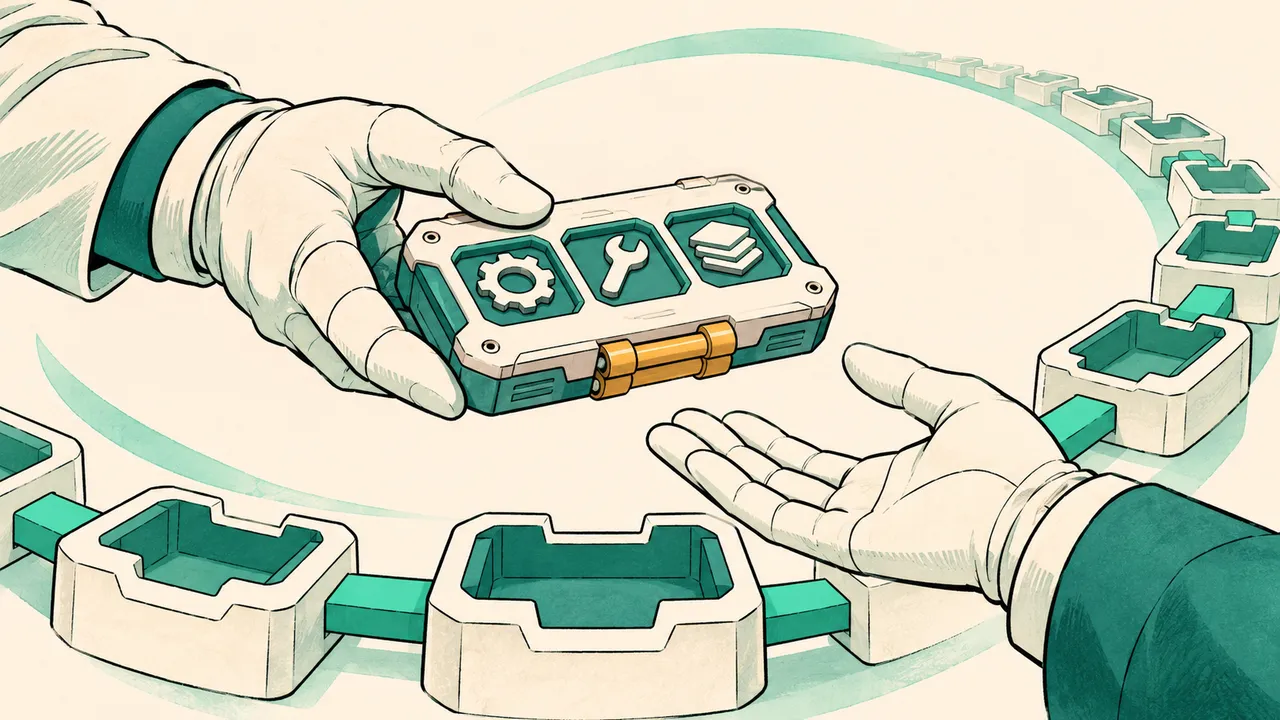
MCP Apps are a newer idea in MCP. A tool result can carry UI information as well as data, describing how the result should be presented and interacted with. The server returns a component that can be rendered, with visuals and interactivity such as button clicks and user input.[1]
The motivation is practical. Consuming an MCP server usually means building and maintaining a frontend in front of it. A self-contained snippet that carries both the data and the user interface can remove much of that work. MCP Apps are a very new addition to the MCP standard.[1]
The parts of an MCP App
An MCP App component needs two halves: a tool and an application resource. A resourceUri connects them.[1]
The example project has three files: server.ts registers the tools and the component as a UI component, src/mcp-app.ts wires up the event handlers, and mcp-app.html is the user interface:[1]
server.ts -- responsible for registering tools and the component as a UI component
src/
  mcp-app.ts -- wiring up event handlers
mcp-app.html -- the user interface
At runtime, the component is injected into an IFrame in the host application. To reach the MCP server, it sends messages to the parent page, and the parent page makes the call. Running in an IFrame is a security measure.[1]
Backend: register the tool and the UI resource
The backend registers the tools the interface will call and defines the component itself.[1]
The first example registers a tool named get-time. It takes no inputs and returns the current server time. The line _meta: { ui: { resourceUri } } links the tool to its UI resource:[1]
registerAppTool(
    server,
    "get-time",
    {
      title: "Get Time",
      description: "Returns the current server time.",
      inputSchema: {},
      _meta: { ui: { resourceUri } }, // Links this tool to its UI resource
    },
    async () => {
      const time = new Date().toISOString();
      return { content: [{ type: "text", text: time }] };
    },
  );
The handler produces the timestamp with new Date().toISOString() and returns it as text content. A tool that needs user input can declare an inputSchema, which the FAQ example below uses.[1]
Next, the component is registered with registerAppResource. Its callback reads mcp-app.html and returns the bundled HTML and JavaScript. The resource URI is ui://get-time/mcp-app.html:[1]
flowchart LR
  subgraph Backend[Backend: MCP Server]
    T["Register tools: registerAppTool()"]
    C["Register component resource: registerAppResource()"]
    U[resourceUri]
    T --- U
    C --- U
  end

  subgraph Parent[Parent Web Page]
    H[Host application]
    IFRAME[IFrame container]
    H -->|Inject MCP App UI| IFRAME
  end

  subgraph Frontend[Frontend: MCP App inside IFrame]
    UI["User interface: mcp-app.html"]
    EH["Event handlers: src/mcp-app.ts"]
    UI --> EH
  end

  IFRAME --> UI
  EH -->|Click triggers server tool call| T
  T -->|Tool result data| EH
  EH -->|Send message to parent page| H
The resourceUri is the link between the tool and the component.[1]
Frontend: the HTML page and event wiring
The frontend has two parts: a page written in plain HTML, and code that handles events, calls tools, or messages the parent window.[1]
The page shows the server time, has one button, and loads a module script:[1]
<!-- mcp-app.html -->
<!DOCTYPE html>
<html lang="en">
  <head>
    <meta charset="UTF-8" />
    <title>Get Time App</title>
  </head>
  <body>
    <p>
      <strong>Server Time:</strong> <code id="server-time">Loading...</code>
    </p>
    <button id="get-time-btn">Get Server Time</button>
    <script type="module" src="/src/mcp-app.ts"></script>
  </body>
</html>
The event wiring lives in mcp-app.ts. It imports App from @modelcontextprotocol/ext-apps and creates an app named Get Time App, version 1.0.0:[1]
// mcp-app.ts

import { App } from "@modelcontextprotocol/ext-apps";

// Get element references
const serverTimeEl = document.getElementById("server-time")!;
const getTimeBtn = document.getElementById("get-time-btn")!;

// Create app instance
const app = new App({ name: "Get Time App", version: "1.0.0" });

// Handle tool results from the server. Set before `app.connect()` to avoid
// missing the initial tool result.
app.ontoolresult = (result) => {
It then sets app.ontoolresult to handle tool results, adds a click handler to the button, and calls app.connect():[1]
  const time = result.content?.find((c) => c.type === "text")?.text;
  serverTimeEl.textContent = time ?? "[ERROR]";
};

// Wire up button click
getTimeBtn.addEventListener("click", async () => {
  // `app.callServerTool()` lets the UI request fresh data from the server
  const result = await app.callServerTool({ name: "get-time", arguments: {} });
  const time = result.content?.find((c) => c.type === "text")?.text;
  serverTimeEl.textContent = time ?? "[ERROR]";
});

// Connect to host
app.connect();
Set app.ontoolresult before app.connect(), so the initial tool result is not missed.[1]
In the handler, the code takes the first text item from the result's content array and writes it into the page, falling back to [ERROR] when no text item exists. The FAQ example follows the same pattern.[1]
When the button is clicked, app.callServerTool() asks the server for fresh data. It takes a name and arguments. Under the hood, it sends a message to the parent window, and the parent window calls the MCP server.[1]
User input: a FAQ lookup
The first example has a single button. The next step adds an input field, so a user can type a keyword such as "shipping" and search a FAQ through a backend tool.[1]
The backend registers a get-faq tool. Its query input is optional, with a default of shipping, declared with a zod schema:[1]
const faq: { [key: string]: string } = {
    "shipping": "Our standard shipping time is 3-5 business days.",
    "return policy": "You can return any item within 30 days of purchase.",
    "warranty": "All products come with a 1-year warranty covering manufacturing defects.",
  }

registerAppTool(
    server,
    "get-faq",
    {
      title: "Search FAQ",
      description: "Searches the FAQ for relevant answers.",
      inputSchema: zod.object({
        query: zod.string().default("shipping"),
      }),
      _meta: { ui: { resourceUri: faqResourceUri } }, // Links this tool to its UI resource
    },
    async ({ query }) => {
      const answer: string = faq[query.toLowerCase()] || "Sorry, I don't have an answer for that.";
      return { content: [{ type: "text", text: answer }] };
    },
  );
The FAQ data and the handler follow. The handler lower-cases the query, looks it up in the FAQ map, and returns an apology when nothing matches:[1]
const faq: { [key: string]: string } = {
    "shipping": "Our standard shipping time is 3-5 business days.",
    "return policy": "You can return any item within 30 days of purchase.",
    "warranty": "All products come with a 1-year warranty covering manufacturing defects.",
  }

registerAppTool(
    server,
    "get-faq",
    {
      title: "Search FAQ",
      description: "Searches the FAQ for relevant answers.",
      inputSchema: zod.object({
        query: zod.string().default("shipping"),
      }),
      _meta: { ui: { resourceUri: faqResourceUri } }, // Links this tool to its UI resource
    },
    async ({ query }) => {
      const answer: string = faq[query.toLowerCase()] || "Sorry, I don't have an answer for that.";
      return { content: [{ type: "text", text: answer }] };
    },
  );
The page gains a text input with id faq-query and a button with id get-faq-btn:[1]
<div class="faq">
    <h1>FAQ response</h1>
    <p>FAQ Response: <code id="faq-response">Loading...</code></p>
    <input type="text" id="faq-query" placeholder="Enter FAQ query" />
    <button id="get-faq-btn">Get FAQ Response</button>
  </div>
Finally, the button handler reads the input's value, passes it to get-faq as the query argument, and displays the returned text:[1]
const getFaqBtn = document.getElementById("get-faq-btn")!;
const faqQueryInput = document.getElementById("faq-query") as HTMLInputElement;

getFaqBtn.addEventListener("click", async () => {
  const query = faqQueryInput.value;
  const result = await app.callServerTool({ name: "get-faq", arguments: { query } });
  const faq = result.content?.find((c) => c.type === "text")?.text;
  faqResponseEl.textContent = faq ?? "[ERROR]";
});
Test in Visual Studio Code
Visual Studio Code has good MCP Apps support and is one of the easiest ways to test them. Add a server entry to mcp.json with a url pointing at the server's /mcp endpoint and a type of http:[1]
"my-mcp-server-7178eca7": {
    "url": "http://localhost:3001/mcp",
    "type": "http"
  }
Start the server, make sure GitHub Copilot is installed, and then type a prompt such as #get-faq in the Chat window. The app renders the same way it does in a browser.[1]
Exercise: rock, paper, scissors
The assignment asks for a rock-paper-scissors game. The interface has a dropdown to choose an option, a button to submit it, and a label that shows both choices and the winner. The server has a tool that takes choice as input, renders the computer's choice, and determines the winner.[1]
Key points
MCP Apps let a server shape how its data is presented, not only what the data is. The component runs in an IFrame and communicates with the server through the parent page. Several libraries for plain JavaScript and React make that communication easier.[1]
Adapted from lesson 3 of Microsoft's open-source course *MCP for Beginners*[1], released under the MIT License.
Sources
- 1MCP AppsMicrosoft mcp-for-beginners (MIT)
Cite this page: MCP Apps: letting tools return interactive interfaces. TellWorld, https://www.tellworld.net/practice/practice-mcp-apps. Updated 2026-11-14